
Do you want any help with Shopify store?
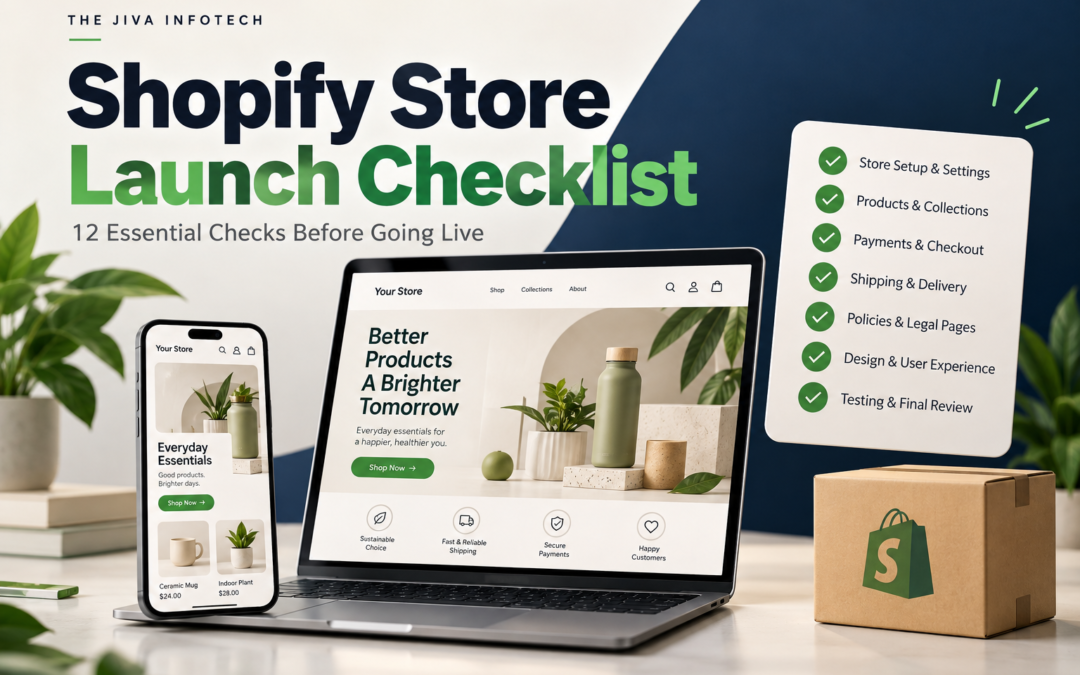
Shopify store launch checklist: before going live, check your mobile design, product details, navigation, checkout, shipping, policies, SEO, and tracking. A polished homepage matters, but customers also need a complete buying journey that works.
This practical guide helps new store owners review the essentials before announcing a launch or sending paid traffic to their website. Work through each check and record any issues that need fixing.
What Does This Shopify Store Launch Checklist Cover?
Use the links below to jump to each pre-launch check.
- Make Your Homepage Easy to Understand
- Review Your Shopify Store on Mobile
- Complete Your Product Descriptions
- Check Product Images, Prices, and Variants
- Simplify Collections and Navigation
- Place a Test Order
- Test Shipping Rates and Delivery Messages
- Make Policies and Support Easy to Find
- Review Loading Speed and Layout Stability
- Review Your Shopify Store SEO Basics
- Verify Analytics and Signup Forms
- Complete One Final Customer Journey
1. Make Your Homepage Easy to Understand
A first-time visitor should quickly understand what you sell, who it is for, and where to start. Use a clear headline, relevant product photography, and one prominent call to action.
Introduce your main collections and explain concrete product benefits. Replace vague promises such as “the best quality” with details shoppers can assess, such as materials, sizing options, or included accessories.
Quick check: Ask someone unfamiliar with your business to describe what you sell after viewing the homepage for a few seconds.
2. Review Your Shopify Store on Mobile
Open the store on a real phone instead of relying only on a theme preview. Browse the menu, scroll through a collection, select a product option, and open the cart.
- Make text readable without zooming.
- Keep variant selectors and buttons easy to tap.
- Check that popups can be closed.
- Make sure sticky elements do not cover important content.
Test long product titles and sold-out variants as well as your best-looking product page.
3. Complete Your Product Descriptions
Write product descriptions that answer practical buying questions. Depending on the product, include dimensions, materials, care instructions, compatibility, sizing guidance, and what comes in the package.
Lead with the main benefit, then support it with specifications. “Includes a removable, machine-washable cover” communicates more than “premium quality and easy maintenance.”
Keep delivery and return information accessible from the product page so customers can find it before checkout.
4. Check Product Images, Prices, and Variants
Review every size, colour, and bundle option. Confirm that each selection shows the correct price, image, and availability. Try changing variants after adding an item to the cart to catch confusing behaviour.
Use consistent photography and provide close-ups where texture or construction matters. Remove sample products, placeholder images, and unfinished descriptions.
Confirm inventory settings reflect how you sell: in-stock items, made-to-order products, and pre-orders need clear and accurate availability messages.
5. Simplify Collections and Navigation
Group products using labels your customers understand. Check the header, footer, collection cards, and promotional buttons for broken or incorrect links.
Remove empty collections and test search with a product name and a common descriptive term. Where filters are available, confirm they return useful results.
Quick check: Ask a new visitor to locate a specific product without giving them instructions.
6. Place a Test Order
Shopify recommends placing at least one test order during setup and whenever you change payment settings. Follow the official Shopify test-order instructions for the payment method you use.
Check the order journey from product selection through confirmation. Verify quantities, discounts, delivery charges, and the final total. Review the customer confirmation email and the order details your team receives.
Ensure payment test mode is turned off before accepting real purchases. A free order alone does not verify that paid transactions can be processed.
7. Test Shipping Rates and Delivery Messages
Use addresses from the regions you plan to serve. Confirm that eligible customers see the intended delivery options and that unsupported destinations are handled correctly.
For free-shipping offers, test a cart below the threshold and another above it. Check whether discounts change eligibility and make the offer wording match the actual behaviour.
Separate processing time from delivery time. Customers should understand when an item is expected to leave your business and how long shipping may take.
8. Make Policies and Support Easy to Find
Provide clear shipping, returns, privacy, and contact information. Review policy wording against your actual business practices, products, and selling regions before publishing.
Explain how customers can request a return or ask for help. Test the contact form and verify that messages arrive in the right inbox.
Remove placeholder addresses and email accounts. If you display customer reviews, use genuine reviews and avoid unsupported claims about your products.
9. Review Loading Speed and Layout Stability
Test the homepage, a collection, and a product page on a mobile connection. Watch for delayed images, jumping buttons, oversized videos, and popups that interrupt browsing.
Resize and compress images appropriately while keeping product details sharp. Our Shopify image optimizer is one option for preparing lighter product images.
Review apps and embedded widgets individually. Keep features that serve customers, and investigate unnecessary scripts rather than removing integrations blindly.
10. Review Your Shopify Store SEO Basics
Give important pages descriptive titles and useful search descriptions. Use your main topic naturally in the page title, opening copy, and relevant headings without forcing it into every paragraph.
- Use a clear main heading and logical subheadings.
- Write original product and collection descriptions.
- Add descriptive alt text to informative images.
- Link related products, collections, and guides where useful.
- Redirect old URLs to relevant new pages when migrating a store.
SEO helps search engines understand your pages; it does not guarantee a particular ranking or sales result.
11. Verify Analytics and Signup Forms
Check that your chosen analytics integrations record the actions you need to measure, such as product views, add-to-cart actions, and purchases. Look for duplicate purchase events if multiple integrations are installed.
Submit your newsletter form using a test email address and confirm the correct list receives the signup. Review any welcome message and promised discount.
Configure tracking and marketing consent for the regions you serve, and verify how your setup responds to a visitor’s choices.
12. Complete One Final Customer Journey
Start at the homepage, browse a collection, select a variant, add it to the cart, and complete a test checkout. Repeat on desktop and mobile, then check the order information your fulfilment process depends on.
Fix purchase-blocking issues before launch. Keep a separate list of cosmetic improvements that can be scheduled later.
Use Shopify’s official store setup checklist alongside this guide to review platform setup requirements.
Shopify Store Launch Checklist: Frequently Asked Questions
What should I check first before launching a Shopify store?
Prioritise the steps that let customers complete an accurate order: product availability, payment processing, shipping options, and the checkout journey. Then review mobile usability, support information, and search content.
Do I need a Shopify developer to launch my store?
A straightforward store can be set up using a suitable theme and standard configuration. A developer can help with custom layouts, complex integrations, unusual product requirements, and technical issues that need more than theme settings.
Should I finish SEO before launching?
Complete the basic page titles, descriptions, heading structure, internal links, and important redirects before launch. Continue improving content and monitoring search performance after the store becomes publicly accessible.
Can I start advertising immediately after launch?
First verify that real customers can purchase, shipping charges are correct, and your measurement setup works. A limited initial campaign can help you observe actual customer behaviour before increasing spend.
Need Help Getting Your Shopify Store Ready?
The Jiva Infotech provides Shopify development and theme customisation services for businesses building or improving their online stores. We can help with responsive layouts, product pages, integrations, and pre-launch checks.
Explore our website development portfolio or contact The Jiva Infotech about your Shopify project.